
Getting started
Upload files and schedules to organize them
Drop in a pile of files and it groups similar ones, writes one document for each group, and turns each group into a project. Timetables and notices become schedule items.
About 2 min to play
Screen order · 5 stages · 16 scenes
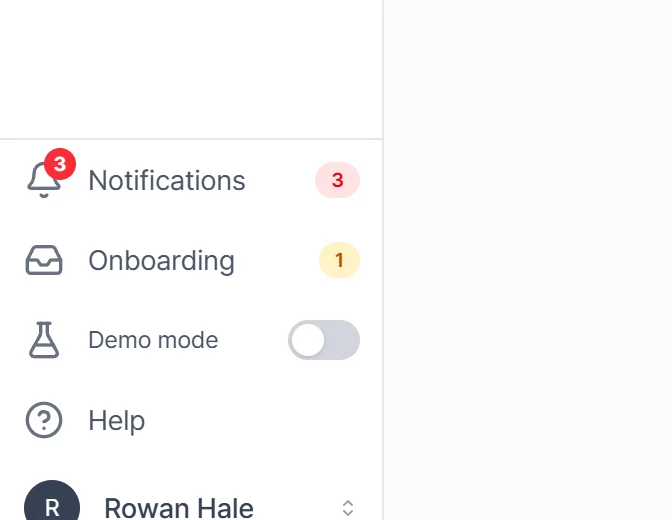
WhereLeft menu, at the bottom›Onboarding›Tab Files or Schedule
1Open Onboarding It's at the bottom of the left menu — not up top with Home and Projects, but further down, set apart from them.
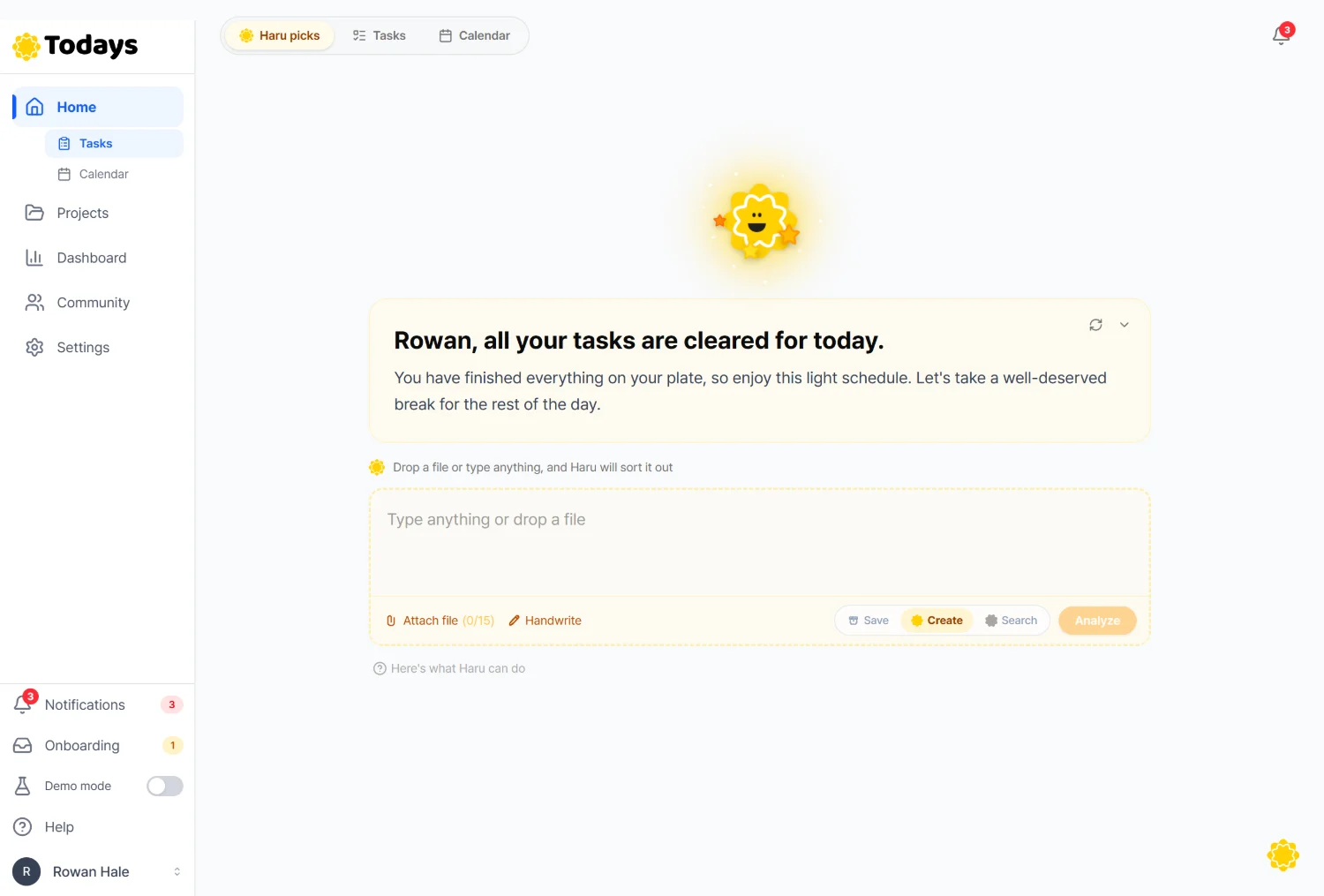
1Takes you to Onboarding. If you have unfinished uploads, a count appears next to it.
What we actually tried
We uploaded 5 files, got 3 groups, and one document for each group
5 in → 8 out
On the left is what the files said; on the right is how the product grouped and organized them. Matching letters belong together. The table below shows which sentence of which file some of the items in the documents came from.
In — 5 files
- brand_colors_and_fonts.txtColors · Base: warm off-white (paper feel) · Accent: one brick red only
- cafe_renovation_estimate_draft.txtItem / Quantity / Notes · Wood finish / 42 square meters / grade decided after the floor plan is final · Light fixtures / 18 / color temperature fixed at 3000K
- cafe_renovation_requirements.txt1. Goals · Refresh the tired look of the shop and get people to stay longer during the day. · Rearrange the seating so solo guests can sit comfortably.
- meeting_notes_october_week1.txtAttendees: three people · Topic: progress on the renovation floor plan and the brochure · Discussion
- new_product_brochure_outline.txt1. Cover · 2. The problem we solve · 3. What's happening in the market right now
Out — 3 groups and 3 documents
- Project “Cafe Renovation Planning”Consolidating renovation requirements, estimates, and planning documents for the shop interior update.cafe_renovation_estimate_draft.txtcafe_renovation_requirements.txt
- Topic “Project Requirements and Scope”The renovation project aims to update the shop's aesthetic and improve seating arrangements for solo customers. The scope includes wall finishes, lighting, menu boards, and outdoor signage. Kitchen equipment and restroom renovations are excluded from this phase.cafe_renovation_requirements.txt
- Topic “Budget and Cost Estimation”The renovation estimate outlines specific quantities and requirements for interior materials and fixtures. Costs remain subject to change based on the final floor plan and the duration of the construction phase.cafe_renovation_estimate_draft.txt
- Project “Brochure and Brand Guidelines”Adding brand visual standards and the new product brochure outline to the design project.brand_colors_and_fonts.txtnew_product_brochure_outline.txt
- Topic “Brand Identity Guidelines”The brand identity guidelines define specific color palettes and typography standards for all visual materials. These rules apply consistently across menu boards, signage, and brochure covers to maintain a unified aesthetic.brand_colors_and_fonts.txt
- Topic “Product Marketing Documentation”The product marketing brochure outline consists of seven sections including the problem statement, market analysis, product functionality, and user testimonials. The document currently requires specific market data for the third section and remains pending the collection of customer stories for the fifth section.new_product_brochure_outline.txt
- Project “October Progress Tracking”Tracking meeting notes and progress updates for ongoing renovation and brochure tasks.meeting_notes_october_week1.txt
- Topic “Renovation Planning and Brochure Development”The renovation floor plan has been narrowed down to a 24-seat configuration. Development of the project brochure is currently in the initial outline stage, with data collection for section 3 serving as the immediate priority.meeting_notes_october_week1.txt
| File | What the file said | In the document |
|---|---|---|
| cafe_renovation_requirements.txtGroup A | Replace the wall finish (bare concrete → warm wood) | Topic “Project Requirements and Scope”The wall finish will be changed from bare concrete to warm wood. |
| cafe_renovation_requirements.txtGroup A | Change the lighting color temperature (5000K → 3000K) | Topic “Project Requirements and Scope”Lighting color temperature will be adjusted from 5000K to 3000K. |
| cafe_renovation_requirements.txtGroup A | Remake the menu boards (photo-heavy → text-first) | Topic “Project Requirements and Scope”Menu boards will be redesigned to prioritize text over photos. |
| cafe_renovation_estimate_draft.txtGroup A | Wood finish / 42 square meters / grade decided after the floor plan is final | Topic “Budget and Cost Estimation”The wood finish covers 42 square meters, with the specific grade to be determined upon finalization of the floor plan. |
| cafe_renovation_estimate_draft.txtGroup A | Light fixtures / 18 / color temperature fixed at 3000K | Topic “Budget and Cost Estimation”The project includes 18 light fixtures and 24 seats, 8 of which are single seats. |
| cafe_renovation_estimate_draft.txtGroup A | Sign / 1 set / includes night lighting | Topic “Budget and Cost Estimation”The signage package consists of one set including night lighting, and menu board printing covers 6 varieties. |
| brand_colors_and_fonts.txtGroup B | Base: warm off-white (paper feel) - Accent: one brick red only | Topic “Brand Identity Guidelines”The base color is warm off-white, while the accent color is restricted to one brick red. |
| brand_colors_and_fonts.txtGroup B | Avoid: neon colors, too many gradients | Topic “Brand Identity Guidelines”Neon colors and excessive use of gradients are prohibited. |
| new_product_brochure_outline.txtGroup B | 1. Cover 2. The problem we solve 3. What's happening in the market right now 4. The product 4-1. What it does 4-2. How you use it 5. Stories from people who tried it 6. How to get started 7. Contact | Topic “Product Marketing Documentation”The brochure structure is divided into seven sections: Cover, The problem we solve, What's happening in the market right now, The product, Stories from people who tried it, How to get started, and Contact. |
| new_product_brochure_outline.txtGroup B | Section 3 needs numbers, and every number needs its source next to it. | Topic “Product Marketing Documentation”Section 3 requires the inclusion of specific market data and corresponding source citations. |
| meeting_notes_october_week1.txtGroup C | We agreed to go with 24 seats. | Topic “Renovation Planning and Brochure Development”The team selected the 24-seat version for the final floor plan. |
| meeting_notes_october_week1.txtGroup C | Brochure draft: by next Friday | Topic “Renovation Planning and Brochure Development”The brochure draft is scheduled for completion by next Friday. |
| cafe_renovation_requirements.txtGroup A | 2 weeks to finalize the floor plan | Key factsThe floor plan finalization period is 2 weeks. |
| cafe_renovation_requirements.txtGroup A | 3 weeks of construction | Key factsThe construction period is 3 weeks. |
Group names, document titles, and topic summaries are all the product's own words. If you upload the same files again, the group names or the way topics are split can come out differently.
What we actually tried
We uploaded one schedule, and each row became a schedule item
5 in → 5 out
We uploaded the table below as a one-page PDF in the Schedule tab and pressed Start extraction. On the right are the items exactly as the product read them. The columns are title, date, start, end, place, and note.
In — october_schedule.pdf (5 rows)
- Final review of the renovation floor plan2026-10-13 · 14:00 · 15:30 · Shop, 2nd floor · Two contractors attending
- Deadline to reply on the sign rules2026-10-09 · Building management office · Reply after checking the rules
- Share the brochure draft2026-10-16 · 10:00 · 11:00 · Online · Include sources for the numbers in section 3
- Compare lighting color samples2026-10-20 · 16:00 · 17:00 · Shop · Three 3000K samples
- Order menu board printing2026-10-23 · Print shop · After lamination is decided
Out — 5 schedule items
- Final review of the renovation floor plan2026-10-13 14:00–15:30 · Shop, 2nd floorTwo contractors attending
- Deadline to reply on the sign rules2026-10-09 all day · Building management officeReply after checking the rules
- Share the brochure draft2026-10-16 10:00–11:00 · OnlineInclude sources for the numbers in section 3
- Compare lighting color samples2026-10-20 16:00–17:00 · ShopThree 3000K samples
- Order menu board printing2026-10-23 all day · Print shopAfter lamination is decided
| Row | As written | Schedule item read |
|---|---|---|
| Final review of the renovation floor plan | Final review of the renovation floor plan 2026-10-13 14:00 15:30 Shop, 2nd floor Two contractors attending | 2026-10-13 14:00–15:30Shop, 2nd floor · Two contractors attending |
| Deadline to reply on the sign rules | Deadline to reply on the sign rules 2026-10-09 Building management office Reply after checking the rules | 2026-10-09 all dayBuilding management office · Reply after checking the rules |
| Share the brochure draft | Share the brochure draft 2026-10-16 10:00 11:00 Online Include sources for the numbers in section 3 | 2026-10-16 10:00–11:00Online · Include sources for the numbers in section 3 |
| Compare lighting color samples | Compare lighting color samples 2026-10-20 16:00 17:00 Shop Three 3000K samples | 2026-10-20 16:00–17:00Shop · Three 3000K samples |
| Order menu board printing | Order menu board printing 2026-10-23 Print shop After lamination is decided | 2026-10-23 all dayPrint shop · After lamination is decided |
Dates, times, places, and notes all carried over as written. When you apply, standalone items become to-dos, and grouped items become a project.
If this happens
- If you don't see Onboarding in the left menu, you aren't signed in. It doesn't open in trial mode.
- If you're short on energy, a button to process only some of them first appears as well. You can do the rest later.
- If a group card says Existing, its files are only added to a project you already have. To get a new document instead, press Unlink first.
- Press Apply after you've made the draft projects — that's what creates the documents too. If you press it first, only the files are moved.
- Schedule extraction reads PDFs, images, Word documents, and .ics files. If a spreadsheet doesn't come out, save it as a PDF and upload that.